What Is a Wi-Fi Dead Zone?
What Is a Wi-Fi Dead Zone?
A Wi-Fi dead zone is a spot where the signal is weak, drops out, or doesn’t reach at all. It’s usually caused by walls, a poorly placed router, or crowded channels.
Technology
Contributor By:
Kamau
13 Nov,2026, 8:46
A Wi-Fi dead zone is a spot in your home, apartment, or office where the signal is weak or doesn’t reach at all. It doesn’t always mean you’re completely offline. Your internet might just crawl, or the connection may keep dropping. Either way, it’s annoying when it happens right where you need to get online.
What causes Wi-Fi dead zones?
Finding the cause is the first step to fixing the problem. Here are some common culprits:
1. Walls and other obstacles
Wi-Fi travels through the air, but some materials get in its way. Thick concrete or brick walls, metal filing cabinets, steel beams, and large appliances can all weaken or block the signal. Generally, the more walls and obstacles between you and the router, the weaker your connection will be.
2. Router in the wrong spot
Router placement matters. If yours is hidden in a cabinet, tucked away in the basement, or placed in a corner, its signal might not reach every room. In many East African homes and offices, routers are often kept in cupboards or behind TVs, which can really limit coverage.
3. Distance from the router
Every router has a limited range, and the signal gets weaker the farther away you are. This can be a problem in large homes, multi-story buildings, and spacious offices where one router can’t reach every room.
4. Choosing between 2.4 GHz and 5 GHz
Most modern routers use two Wi-Fi bands. The wrong one for your setup can leave you with a weak connection, even if you’re fairly close to the router.
- 2.4 GHz reaches farther and passes through walls more easily, but it’s slower and more likely to run into interference from other devices.
- 5 GHz is faster, but it doesn’t reach as far and has a harder time getting through walls and other obstacles.
If you’re connected to 5 GHz and there are thick walls between you and the router, the signal may struggle even when the router isn’t very far away. Many newer routers have a feature called band steering, which automatically chooses the better band for your device.
5. Interference from other devices
Devices around your home or office can interfere with Wi-Fi. Baby monitors, microwaves, cordless phones, and even your neighbors' Wi-Fi networks can make the connection weak or unreliable in some areas.
6. Too many devices using the network
A strong signal doesn’t always mean a fast connection. When lots of devices are using the same router, they share the available bandwidth. Phones, laptops, smart TVs, and security cameras can all slow each other down, making the Wi-Fi feel like it has a dead zone. This is especially common in busy households and shared offices.
7. Old equipment or outdated firmware
An older router may not have the range or features you need to cover your space. Outdated firmware can also cause slowdowns, bugs, or security problems that affect your connection. It’s easy to forget to update your router, but doing so can make a noticeable difference.
How to Find Wi-Fi Dead Zones
Method 1: Walk around and run a speed test
You can do this with just your phone. Open a speed test app, then walk slowly around your home or office. Run a test in each room or area and jot down the results. Spots with much slower download or upload speeds may be Wi-Fi dead zones.
Method 2: Use a Wi-Fi analyzer app
For a closer look, try a Wi-Fi analyzer app. It shows how your signal changes as you move around, making it easier to spot places where coverage drops off.
A few options include:
- NetSpot for Windows, macOS, and Android
- WiFi Analyzer for Android
- Network Analyzer for iOS
Walk through your space with the app open and watch for areas where the signal gets noticeably weaker. Some apps can also show whether nearby networks are using the same Wi-Fi channel as yours, which could be causing interference.
How to Fix Wi-Fi Dead Zones
Move your router
This is often the biggest improvement you can make, and it won’t cost a thing. Put your router somewhere central, ideally up high on a shelf or mounted on a wall. Keep it away from thick walls, corners, cupboards, large metal objects, microwaves, and cordless phones.
Adjust the antennas
If your router has external antennas, try pointing them in different directions. A good starting point is one antenna straight up and the other sideways. This can help spread the signal more evenly around your space.
Restart your router
A quick reboot can fix more Wi-Fi problems than you might expect. It clears temporary issues and gives the router a fresh start. Turn it off, wait 30 seconds, then turn it back on.
Change your Wi-Fi channel
In apartments and busy office buildings, nearby routers can crowd the same Wi-Fi channel and interfere with each other. Check your router’s settings and try switching to a less busy channel. A Wi-Fi analyzer app can show which channels are in use nearby, though many newer routers can choose a channel automatically.
Try these next
Update your router’s firmware
Sign in to your router’s admin settings and check for updates. Firmware updates can improve performance, fix bugs, and address security issues. Keeping the software current may also clear up connection problems you didn’t realize were caused by an outdated version.
Add a Wi-Fi extender
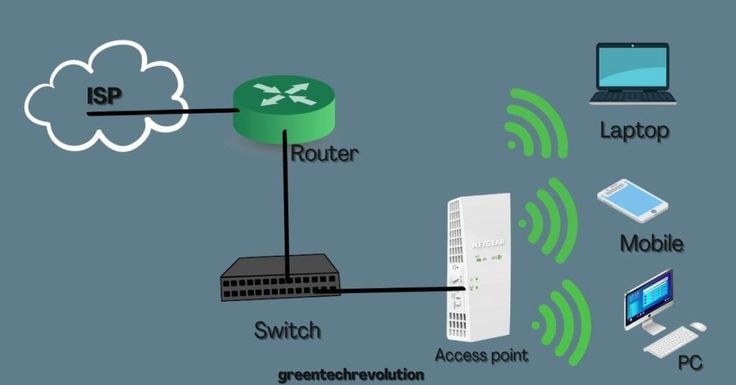
A Wi-Fi extender picks up your router’s signal and rebroadcasts it farther into your home or office. It’s an affordable option for smaller spaces with just one or two dead zones.
One downside: extenders often create a separate network, so your devices may not switch smoothly between the extender and your main router as you move around.
Consider a mesh Wi-Fi system
For larger homes, multi-storey buildings, or spaces with thick walls, a mesh system can provide more consistent coverage. It uses several nodes placed around your space, all working together as one network. Your devices automatically connect to the node with the strongest signal, so you don’t have to switch networks yourself.
Mesh systems cost more upfront than extenders, but they’re often a worthwhile investment for bigger homes and offices that need reliable coverage throughout.
Replace an older router
If your router is several years old, it may not have the range or technology to cover your space properly. Newer models, including Wi-Fi 6 routers, can offer better range, faster speeds, and more reliable performance when lots of devices are connected. Upgrading can make a noticeable difference.
One more thing:
Check that your Wi-Fi is secure. If your password is weak or has been shared widely, other people may be using your network and eating up your bandwidth. That can lead to slow speeds or connection problems that feel like dead zones.
When to Call Your Internet Service Provider (ISP)
Sometimes the problem isn’t inside your home or building. If you’ve moved your router, restarted it, updated its firmware, and added extenders but still have dead zones, or your internet is consistently slower than the plan you’re paying for, it may be time to call your internet provider.
Here are a few signs the problem could be on their end:
- Your connection is slow even when you plug a device directly into the router.
- Your whole building or neighborhood is dealing with intermittent outages.
- Your modem keeps losing its connection or restarting on its own.
- Your speeds are much lower than what your plan promises.
Your provider can run tests remotely, check the connection, and send a technician if needed.
If you have tried the usual fixes and the problem won’t go away, don’t hesitate to get in touch. It may be out of your hands.
Start earning today with Noch Wired
Popular Posts