Customizing the MikroTik Hotspot Login Page
Customizing the MikroTik Hotspot Login Page
Your login page is the first thing a customer sees and the last thing they read before they pay. Make it show your name, your prices, and a way to pay.
How To
Contributor By:
Maxwell Kamau
20 Oct,2026, 9:26
Take a look at your login page a couple of steps back. Can a stranger tell which Wi-Fi it is? Can a passer-by see a price? Can an unknown user know which button to push? On most hotspots, the answer is no. A user sees a gray box, the name of a router company, and a field they do not understand. They get discouraged and move on to another hotspot. They decide in a few seconds, so your page has to be clear quickly.
What a stranger needs in three seconds
Whose Wi-Fi is this? What can I buy? How do I pay? Who do I call if it stops working? A customer outside your hostel, with only a 20 percent battery left on their phone, asks all of these questions before glancing at your page. You have three seconds to answer each.
First impressions are everything, so put a logo and a name at the top of the page, and make sure the latter matches the one on your signboard and the Wi-Fi hotspot name, lest they think they have wandered onto Kamau’s page by mistake.
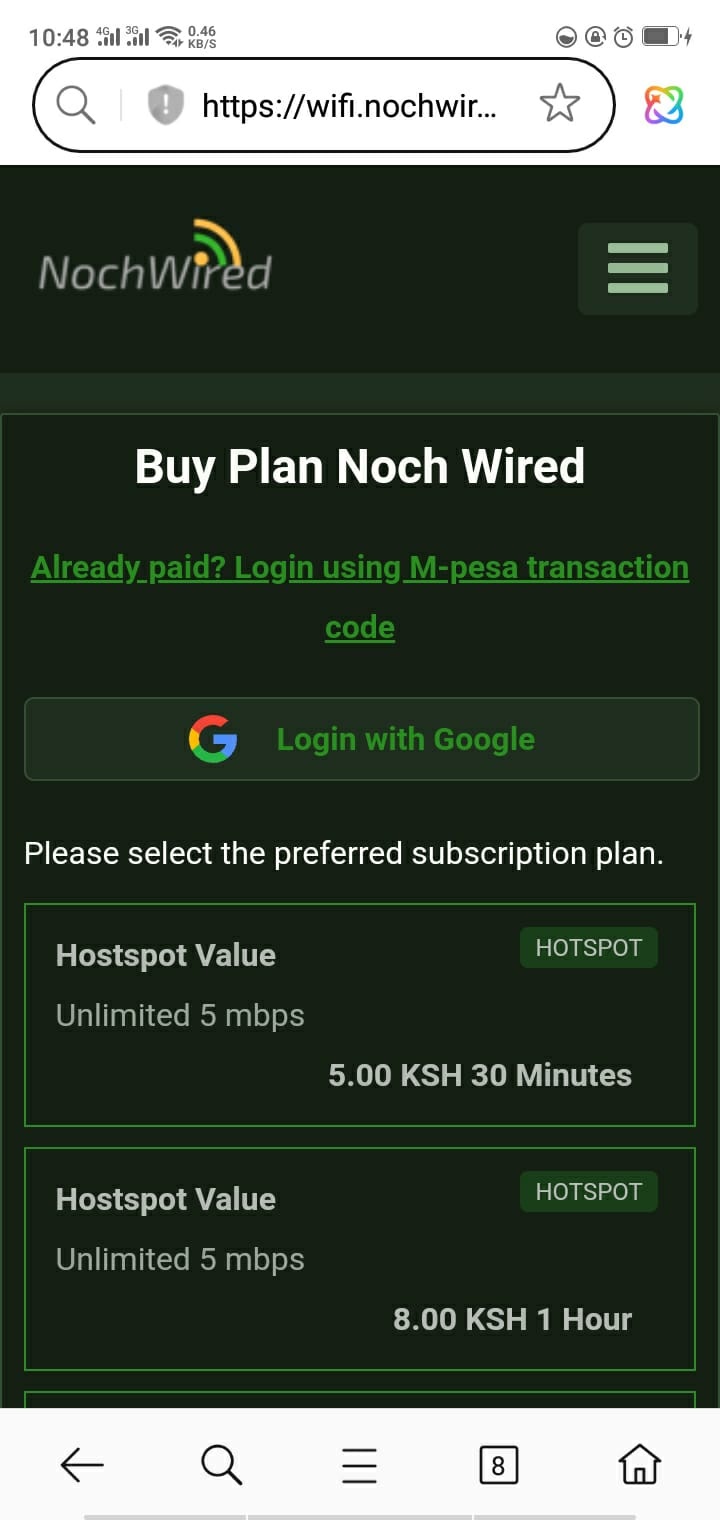
Second, two or three packages answer the “what can I buy” question; list them in a simple pricing format, using the most popular one at the top. (“1 hour, KES 20”, “1 day, KES 50”, and so on.) Long lists make customers hesitate, so restrict yourselves to four items at most.
Third, one line of instructions suffices to explain how to pay. (“Enter your phone number and tap Pay. You will get an M-Pesa prompt on your phone.”) Customers who have subscribed using an STK push need to know that this popup is coming, or they will close the page, thinking something has gone wrong.
Finally, a support phone number at the bottom of the page answers the fourth question and saves you from a deluge of panicked calls. All the rest is optional: a welcoming paragraph, a picture of your shop, or a list of terms and conditions only serve to fill the screen, pushing the essential content further down. Save that to another page and brand it separately.
The look needs three decisions, and no designers.
Pick two contrasting colours, one for headers/buttons and one for highlights. Use light backgrounds with dark text or vice versa: text on pale grey is barely visible under the bright Kenyan sun, so prefer dark on light for better legibility. Test the buttons’ colour contrast against a white background, as that is the default for most phones.
Choose one font, and the easiest choice is the system default, which doesn’t waste data downloading a font nobody knows. Custom fonts look nice but add KBs to a page your customer has to download before buying your service. Resize and compress your logo into a square PNG file with a transparent background: 512 x 512 pixels is ideal, with the file under 30KB. (Bigger files slow down the router, which hosts the page.) Write in the language your customers speak. If your staff chats in Swahili most of the time, use that, or a mix of English and Swahili. Your SMS, the signboard, and the page should sound the same.
Use friendly, familiar phrases in whichever language you pick, including “Chagua kifurushi / Choose a package”.
What sits behind the page on MikroTik
MikroTik-based hotspots serve HTML pages from their internal storage. The default ones are named login.html, status.html, logout.html, error.html, and redirect.html. The first two control the page the customer sees upon connecting and after logging in:
/ip hotspot profile set [find] html-directory=hotspot-branded
You can use either Winbox or the terminal to do this. The easiest way to brand these is to create a copy of the default hotspot folder, edit them in a text editor, and upload the changes using the Files section in Winbox.
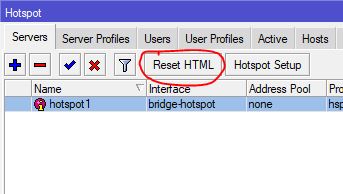
If you make a mistake, the command /ip hotspot reset-html will restore the original versions. First rule: avoid rewriting the login form yourselves. The default hotspot/login.html file contains the exact markup needed for the hotspot to work, including a small JavaScript snippet that hashes the password if your router uses CHAP.
Keep most of the default form intact, only editing the button labels, and leave the action="$(link-login-only)," the hidden dst and popup fields, and the script block, and change only the colours, text, spacing and logo around them.
And use the template variables instead of typing values by hand, because the router fills in placeholders such as $(error), $(username), $(link-orig) and $(link-status) itself.
A simple header with an error block looks like this:
<div class="brand">
<img src="logo.png" alt="Kamau Wi-Fi" width="96" height="96">
<h1>Kamau Wi-Fi</h1>
<p>Fast internet, pay as you go</p>
</div>
$(if error)<p class="error">$(error)</p>$(endif)
Images go into the same directory and are referred to by their filename. This way, the router serves them internally and doesn’t have to fetch them over the internet. Anything hosted externally will be unavailable to the customer until they pass through the hotspot, with the exception of domains whitelisted using the walled-garden feature.
Most billing systems do not require the router to handle payments, only redirecting the customer to a billing page hosted elsewhere. Those who use STK push as their payment method typically select a package on the billing page and authorize the payment through an STK push.
Keep it light and working on every phone
Your customer will load this page before they have working internet, so be considerate. Keep the file size under 200KB, including the logo, and don’t use carousels, videos, or heavy scripts. A solid color or a subtle pattern requires no extra data to download and looks better on a mobile screen. Design the page for small screens first.
Use a single column, make buttons at least 44px tall, and ensure the text fields are large enough for comfortable typing. The latter is especially important for iPhones, which zoom in on small text fields, breaking the layout. Ensure your viewport contains the page and that the page doesn’t require horizontal scrolling.
Be prepared for the phone’s built-in mini-browser as well. When a phone detects a captive portal, it will open it in a special mode, also known as a captive network assistant. This view is different from Chrome or Safari and doesn’t support all features: some cookies and logins will not transfer to your page unless the user explicitly authorizes them.
Downloads and popups are also disabled by default for security reasons, so err on the side of caution and design your pages within these limitations. Friendly error messages are also a must: the default ones from your router are written in robot-speak, while a human voice reassures the customer that their phone number works and encourages them to try again. (“That code did not work. Check for spaces and try again, or call us on 07xx xxx xxx.”) You guessed it: this is the cheapest customer service you will ever buy.
Finally, append a short note about your terms of use and how you handle customers’ phone numbers, as you hold their personal data on your servers. Make sure to follow Kenya’s data protection regulations, use simple language, and don’t use Safaricom’s or M-Pesa’s logos without permission. A simple note saying “Pay with M-Pesa” is sufficient.
Test it with real people
Your own phone is a terrible choice for testing: you know exactly what to expect. Instead, ask five people to try buying a one-day pass with no instructions from you, and watch where their eyes go, what they read out loud, and what they click. Observe the hesitation in their fingers as they attempt to find the payment button and jot down notes. Ten minutes of observing teach you more than a day of guesswork.
Second, test the pages on a real phone, not a computer. Use a recent iPhone, a recent Android phone, an old Android device, a phone with a terrible connection, and one with a bright screen. Try the entire workflow (paying, viewing the status, and logging out) and attempt a few error conditions as well. An expired pass, a wrong STK code, or a billing server being unreachable will show your customers something your business doesn’t want to see, so be prepared to explain it to them.
When you’re done, make sure to backup your final folder somewhere safe, as a router upgrade will overwrite it. You will not enjoy rebuilding the pages from memory if your router dies or you have to reset it. Update the page the same day you update your pricing or support number, as nothing breaks customer trust like an out-of-date website.
Start earning today with Noch Wired
Popular Posts