Handling Hotspot Billing and M-Pesa Reconnection over Starlink
Handling Hotspot Billing and M-Pesa Reconnection over Starlink
By default, Starlink blocks incoming connections, so an M-Pesa payment can still get through to your router to reconnect users. This also happens when the internet goes down.
Billing and Payments
Contributor By:
Kamau
09 Nov,2026, 8:57
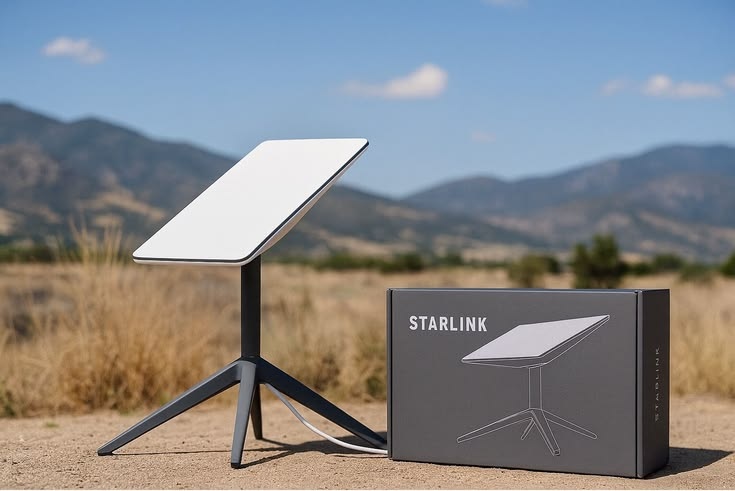
Starlink can make hotspot billing a little tricky. Your router can connect to the internet, but depending on your plan, services on the internet may not be able to connect back to your router. That matters because a hotspot payment involves three parties: your customer’s phone, Safaricom, and your billing system.
Most of the process can work just fine over Starlink, but there are a few things to set up properly.
How Starlink affects your connection
With many Starlink plans, your router doesn’t get its own public IP address. Instead, it shares one with other customers through carrier-grade NAT. Think of it like an apartment building: everyone can make calls from their own flat, but someone outside can’t call a specific flat directly.
Your MikroTik can connect to your billing server, but your billing server may not be able to connect directly back to your router. Some Starlink plans or providers offer a public IP address for an extra fee, so check with Starlink or your reseller if you need one.
Starlink can also drop out for a few seconds, perhaps because a tree or pole is blocking the dish, or for longer if there is a service issue. Your router and billing setup should be configured to handle brief interruptions rather than treating every drop as a permanent failure.
Your customer’s phone communicates with Safaricom over the mobile network, not through your Starlink connection. Safaricom then sends the payment result to your billing server. Your billing server communicates with your router, and that final part can use Starlink.
There is one important requirement for the connection between Safaricom and your billing server: Safaricom needs to send the payment result to a public HTTPS web address. That means your billing server must be reachable from the internet, for example, by running on a cloud server. Your router can then connect to that server.
What happens during a payment
First, the customer connects to your Wi-Fi and sees a login page from your billing server. The page’s address needs to be added to your router’s walled garden, which is the list of websites customers can visit before logging in.
The customer chooses a pass and enters their phone number. Your billing system asks Safaricom to send an STK Push payment prompt to their phone. The customer enters their PIN to approve the payment.
In one billing system’s documentation, Safaricom’s address does not need to be added to the walled garden because the customer approves the payment on their phone.
Next, Safaricom sends the payment result to your billing server. Your server should acknowledge the message quickly with a simple response, such as “received,” and then carry out any follow-up actions. Some developer guidance warns that callbacks may not be retried reliably if they aren’t acknowledged.
Your system should also be able to handle duplicate messages without charging the customer twice. For payments that stay pending, a good billing system can check the transaction status with Safaricom.
Once the payment is confirmed, your billing system marks the customer as paid. Your router checks with the billing server through RADIUS, gets approval, and lets the customer go online. The timer starts, and the customer reconnects automatically. There is nothing you need to do.
What can go wrong with Starlink, and how to fix it
The biggest headache is often a connection dropping at just the wrong time. Here are a few common issues and some practical ways to deal with them.
Customers lose time
A customer’s pass keeps counting down while they are logged in. If Starlink goes down, they could lose the time they weren’t able to use.
Set a fair policy, such as adding time to active passes when an outage lasts longer than an hour. Let customers know what to expect on the login page.
A customer pays during an outage
Customers can pay from their phones using the mobile network. Safaricom might still be able to reach your billing server, but your server can’t contact the router until Starlink comes back online.
A pull system can help. The customer tries to log in again, and the router checks with your server through RADIUS. If the server confirms the payment, the customer can get online.
Make your login page useful during an outage.
For example:
“Paid but can’t get online? Wait a minute, then try again.”
Your server can’t reach the router
If there is no direct connection to the router, messages from your server, like “end this session now,” might not get through.
Set up a private tunnel between the router and server using a tool like WireGuard. That lets messages travel both ways. Add a keepalive so the tunnel can reconnect when the internet comes back.
A short outage confuses customers
Your router might time out while waiting for a RADIUS response, which can stop customers from logging in.
Give the router more time to respond, and send regular updates to your server so it can keep track of active sessions.
Old sessions still show as active after a reboot
After a power outage or Starlink reboot, your server might still show customers as online. A good billing system should automatically close old sessions.
The router’s clock is wrong
After a power outage, your router might have the wrong time. That could make time-based passes expire too early or too late. Make sure the router syncs its time from the internet.
Double NAT causes odd problems
If the Starlink router is still working as a router, your MikroTik sits behind it. Put the Starlink router in bypass mode so the MikroTik is the only router.
Have a backup connection
If Starlink goes down, your MikroTik can switch to another connection, such as a 4G router.
Use a battery to keep the dish and router running during a power cut. Even the best settings won’t help if your equipment loses power.
And keep customers updated. Tell them what is going on and when you’ll share more. Keep it simple and clear.
Test it like a customer would
Don’t rely on a setup you haven’t tried yourself. Use a spare phone that has never connected to your Wi-Fi. Connect, log in, buy a pass with a real payment, and check that the internet starts working automatically. Then let the pass expire and make sure access stops when it should.
Test what happens on a bad day, too. While using a pass, unplug your Starlink cable and wait a few minutes. Plug it back in, then check the timer and session. Try paying while the connection is down, and make sure the customer can log in once it’s back. Reboot your router and check that old sessions are cleared.
Once you have run through these tests, you can feel more confident in your billing setup. The connection might drop from time to time, but customers should still get the time they paid for.
Start earning today with Noch Wired
Popular Posts