Why Your Wi-Fi Says Connected but Has No Internet
Why Your Wi-Fi Says Connected but Has No Internet
It says connected, but nothing opens. You will hear this statement quite a bit, so you know what to check first and what to tell the customer right away.
Technology
Contributor By:
Maxwell Kamau
18 Oct,2026, 10:18
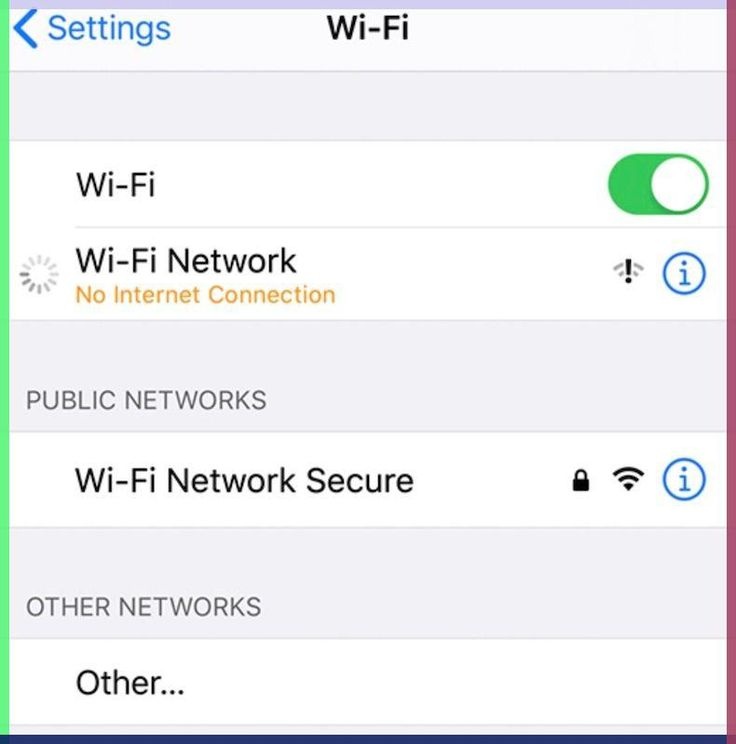
To be connected is not to be online. A phone may display your Wi-Fi identity, full bars, and a green checkmark, but it may not be able to connect to the internet. One of five phases between the phone and the website is where the problem occurs when your Wi-Fi indicates that it is connected but there is no internet. If you go through them in order, you'll locate it quickly.
Split the problem in two
Before going near a router, ask yourself one question: does the problem affect one customer, or everyone?
If it is a single phone or a laptop, the fault is on the customer’s end, or their plan and login credentials. If every customer has the same problem simultaneously, the fault is yours: in your network, the router or the upstream line. With this single question, you can save most of your time. An incorrect guess here will send you to reboot the router for a problem with one phone.
When it is just one customer
Begin with their plan, because it is the most frequent one on a paid hotspot. The bundle may have lapsed, the data limit may be reached, or the session may have expired. A phone that stays connected to the Wi-Fi after the plan ends is a perfect example of this one, connected but going nowhere. Before doing anything else, check the customer’s account in your billing system. It takes ten seconds and settles the question.
Second, check that a second device is the cause. A voucher may have one device at a time, and if the customer is on a laptop, you can imagine that their phone will lose access while the bars remain bright.
Then look at the phone. Several problems may affect the connection in ways that mimic your fault:
Wrong date and time. Secure sites will fail their certificate check, and everything looks dead.
Private DNS or a VPN. Android phones can block the login page from showing or send it somewhere that doesn’t work on your network.
A stale saved network. Tell the phone to forget the Wi-Fi and rejoin, and the phone gets fresh settings.
Airplane mode on and off. An old trick, but it resets the radio and the address.
If nothing works, test with a second phone. If the second phone works, it is the first one’s problem, and you can stop testing your network.
When it is everyone, follow the signal
Now treat the network like a chain of five links. The request leaves the phone, reaches your router, passes on to the internet, finds the right address for the website name, and comes back. Test each link, in order, and whichever fails first is your problem.
Link 1: did the phone get an address?
When a phone joins, your router hands out an address via DHCP. If that fails, the phone is connected but has nothing to send data with. On a laptop, an address that begins with 169.254 is an indicator, while on a phone, check the Wi-Fi details for an address, with no address at all that points to the same fault.
The usual cause is a full address pool. A busy hotspot with long lease times can run out of addresses, and new customers join but get nothing, while old customers keep working. This creates the classic pattern where it works fine in the morning and fails in the evening. On a MikroTik, be sure to look at the pool and the active leases, and compare their sizes:
/ip pool print
/ip dhcp-server lease print count-only
The fix is a larger address range, shorter lease times on a busy hotspot, or both.
Link 2: can the phone reach the router?
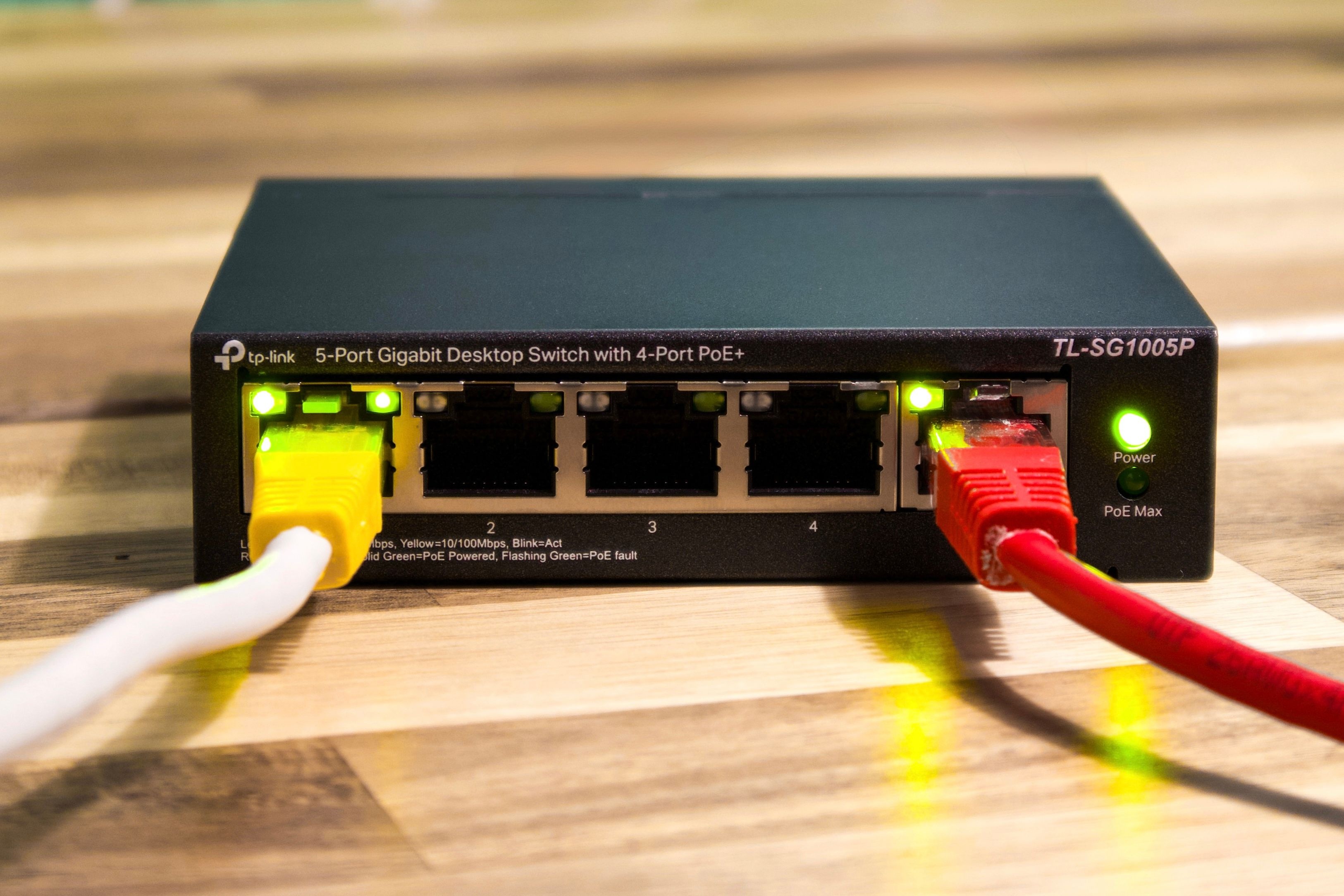
If the phone has an address but cannot reach the router, look at the access points. An access point that has lost its connection to the router, a faulty cable or PoE injector, or an overloaded access point are your suspects. If customers near one access point fail while others work, that unit is the problem.
Link 3: can the router reach the internet?
Log in to the router and ping a well-known address:
/tool ping 8.8.8.8 count=4
If this fails, your router has no internet connection, and the problem is upstream. Check the upstream line first. On Starlink, open the app and look for an outage or obstruction. On a provider’s line, look at the cable and ask them if there is a fault. Since you are on the router, also check that your NAT masquerade rule exists. Without it, customers cannot share your connection:
/ip firewall nat print
Link 4: can names be turned into addresses?
This one fools many owners. Ping the name of a website:
/tool ping google.com count=4
If pinging an address works but the name fails, DNS is broken. Phones that show full Wi-Fi bars but every page fails to load, while a few apps that use fixed addresses still work. The cause is a dead or overloaded DNS server. Check what DNS servers your router is using and whether it answers, and set reliable public servers as a backup:
/ip dns print
Link 5: is your hotspot letting people through?
If the router has internet and DNS works, the last stage is your own gateway. A broken captive portal makes customers connect and never see the login page. Common causes are a walled garden that is missing your login or payment page, or stopped hotspot service after a reboot, or with RADIUS unreachable, so the router cannot ask if anyone is allowed in. When the billing server is down or the link to it breaks, the router has no answer, and customers are stuck. Look at the active users and the RADIUS status in your logs.
The oddball
A few causes to consider do not fit the chain, and you need to know them.
Some sites load while others hang. It is almost always an MTU issue. PPPoE and some tunnels reduce the biggest packet that can pass, and big packets then disappear. The usual solution is clamping the MSS in your firewall rules. If small pages work and big pages stall, try that.
Everything slows down and then dies. Look at the router’s CPU. An overloaded processor drops packets and stops responding. Run /system resource print and look at the load during the failure.
A new device on the network causing chaos. A customer who plugs a home router into your network can start handing out wrong addresses and break everyone. DHCP snooping on the bridge, with only your real server port trusted, protects against this.
It started right after a power cut. Some equipment does not come back in the right order. Restart in sequence: the upstream line first, then the router, and then the access points.
What you should immediately tell the customer
You will not always have the time to explain. Keep a short script for the person standing in front of you:
Turn the Wi-Fi off and on, or forget the network and rejoin.
Open any plain website, not an app, to bring up the login page.
Check that the date and time on the phone is correct.
Check that the plan has not ended.
If that fails, stop guessing and move to your own checks above.
The ten-minute routine
When customers start calling, run this in order and stop at the first failure:
Ask whether it is one customer or everyone.
For one customer, check the plan, the device limit, and the phone settings.
For everyone, check the address pool.
Ping 8.8.8.8 from the router.
Ping a website name from the router.
Check that the hotspot and RADIUS are running.
Watch the router’s CPU and the access points’ status.
Write down what you find each time. After a few weeks, the pattern tells you what breaks most often, and you can fix it for good.
Start earning today with Noch Wired
Popular Posts